Flow Control / How to set a custom YouTube playback speed
How to set a custom YouTube playback speed
Choose a precise speed for YouTube videos, save it for the site, and temporarily boost through slow sections with Flow Control.
Choose the speed that fits the video
Start with YouTube’s own playback-speed menu if it gives you the control you need. Flow Control is useful when you want a saved site preference, keyboard adjustments, or a temporary boost without reopening a menu.
For example, watch a tutorial at 1.5x, slow down while copying code, then hold a key to speed through a section you already know. The extension changes playback speed; it does not edit or download the video.
Set a custom rate
- Install Flow Control from the Chrome Web Store in a desktop browser.
- Reload any YouTube tab that was already open, then start a video.
- Open Flow Control from your browser’s extensions menu and make sure it is enabled for the site.
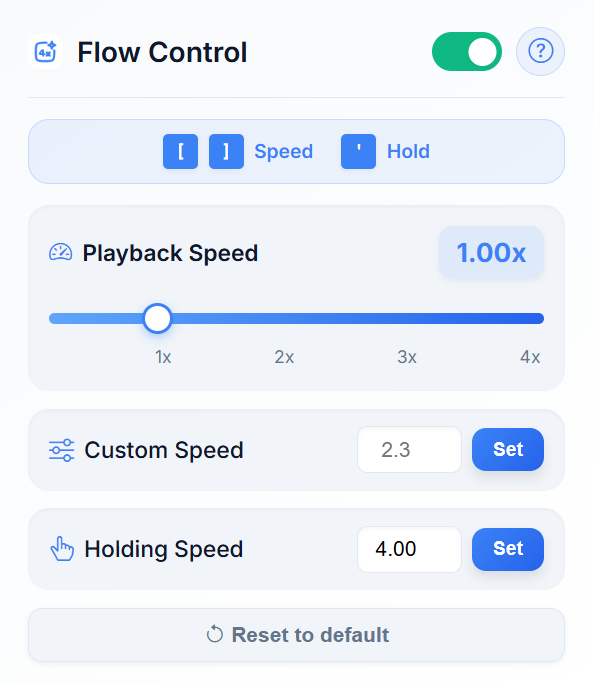
- Drag the slider between 0.25x and 4x, or enter a number such as 1.75 or 2.5 in Custom Speed and select Set. The custom input accepts 0.25x–8x.
- Open another video on the same site. Flow Control uses the saved site setting.
Use the keyboard while watching
Click outside the search box or comment field. Press ] to add 0.25x or [ to subtract 0.25x. In the popup, set Holding Speed to a faster rate, then hold ' while watching. Releasing the key returns to your saved speed.
How much viewing time does a faster rate save?
A 60-minute recording takes 40 minutes at 1.5x or 30 minutes at 2x, excluding pauses, buffering, and rewinding. Faster is not always better: reduce the rate when you need to understand a new idea or follow a demonstration.
If the speed changes back or a key does nothing
Check that Flow Control is enabled and has permission to run on the site. Close other speed-controller extensions and reload the page. Click outside editable fields before using shortcuts. Some players and live streams constrain playback speed, and high rates can affect audio intelligibility.
To return to the player’s native controls, disable Flow Control in your browser’s extension settings and reload the page. See the troubleshooting guide if the problem continues.
Try Flow Control
Free and open source. No account required. For desktop Chrome and compatible Chromium browsers.
Add to Chrome — FreeInstallation and troubleshooting · Privacy details