Video speed control.
Your pace.
Watch lectures and tutorials at your pace. Flow Control remembers each site’s speed. Use the keyboard to adjust it, or hold a key for a temporary boost.
Desktop browsers · Free & open source · No account
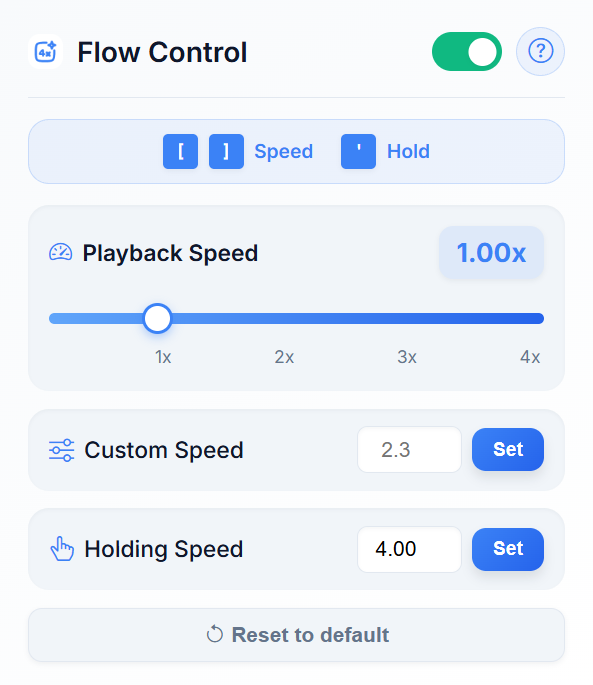
Built for people who watch a lot
Keyboard speed controls for HTML5 video, with a separate preference for each site.
Precise Speed Control
Use the slider from 0.25x to 4x, or enter a custom playback speed up to 8x.
Per-Site Memory
Your preferred speed settings are remembered for each website you visit.
Hold-to-Speed
Hold a key to temporarily boost speed for quick previews, release to return to your set speed.
Auto-Apply
Settings automatically apply to new videos, even after page reloads or navigation.
HTML5 Video Support
Designed for HTML5 video, including YouTube and course sites. Some players and live streams may limit speed changes.
Keyboard Shortcuts
Use [ ] to adjust speed and ' to hold for temporary speed boost.
See Flow Control in action
Simple, powerful controls that stay out of your way
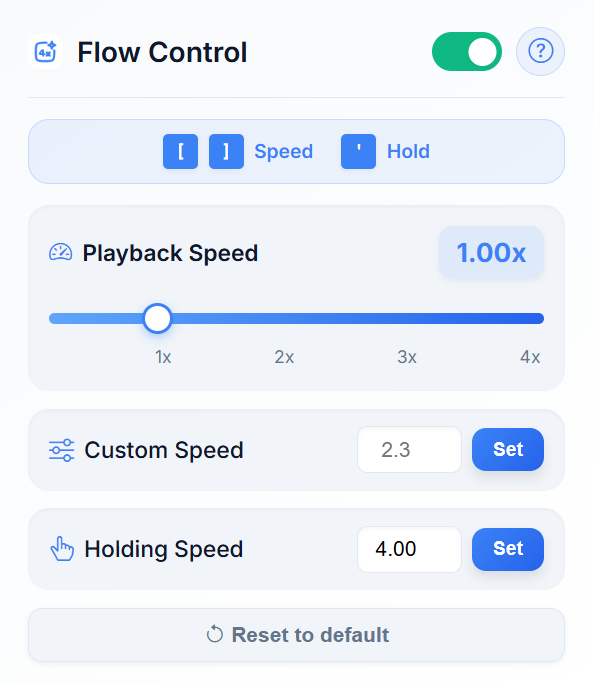
Intuitive Speed Control
Set the playback speed for the current site from a compact popup.
Speed Slider
Drag to adjust from 0.25x to 4.0x, or enter custom values up to 8.0x
Hold Speed
Configure a separate speed for when you hold the ' key
Per-Site Toggle
Enable or disable Flow Control for each website individually
Keyboard Shortcuts
Press [ ] to adjust speed without opening the popup
Install, pin, and pick your pace
Install on a desktop browser, then reload any video tabs you already had open.
Get more from every video
Set up your pace, learn the shortcuts, and fix common playback issues.
Set a custom YouTube playback speed
Go beyond presets with the popup, shortcuts, and temporary boost.
Read guide →Remember video speed for each site
Keep a different pace for tutorials, lectures, and other video sites.
Read guide →Video speed keyboard shortcuts
Learn the bracket keys, hold-to-boost, and fixes for common conflicts.
Read guide →Frequently asked questions
Get answers to common questions about Flow Control
Which websites does Flow Control work with?
Flow Control targets HTML5 video, including YouTube and many course and streaming sites. Compatibility depends on the player; restricted pages, live streams, or sites that override playback speed may not work as expected. See the troubleshooting guide.
Is Flow Control free?
Yes. Flow Control is free and open source, with no account required. Install it from the Chrome Web Store on desktop Chrome or a compatible Chromium browser.
Where are my settings stored?
Site names and your speed, hold speed, and enabled setting are stored in Chrome’s extension sync storage. Chrome may sync them between your browsers if you enable Chrome Sync. The extension has no analytics or developer-run data server. Read the privacy details.
Does it affect audio quality?
The browser handles playback speed and usually preserves audio pitch. Very high speeds can reduce intelligibility, and some players may mute audio or limit the supported speed. Choose a rate that is comfortable for you.
What happens if a website already has speed controls?
Flow Control can reapply its saved speed when a player changes it. If controls conflict, use one speed controller at a time. Disable Flow Control in your browser’s extension settings and reload the tab to use the player’s controls. You can also restrict the extension’s site access in your browser.
What are the keyboard shortcuts?
Press [ to decrease speed by 0.25x, ] to increase speed by 0.25x, and hold ' (apostrophe) for a temporary boost. Release to return to your saved speed. Click outside text fields first. Full shortcut guide.
Ready to Take Control?
Install Flow Control today and experience videos at your perfect pace.
Install Now